

Find a conversation
The Inbox tab shows every conversation your customers have with your store. Each customer has one thread that holds all their conversations, so the full story is in one place. New messages appear by themselves every few seconds, without reloading the page.
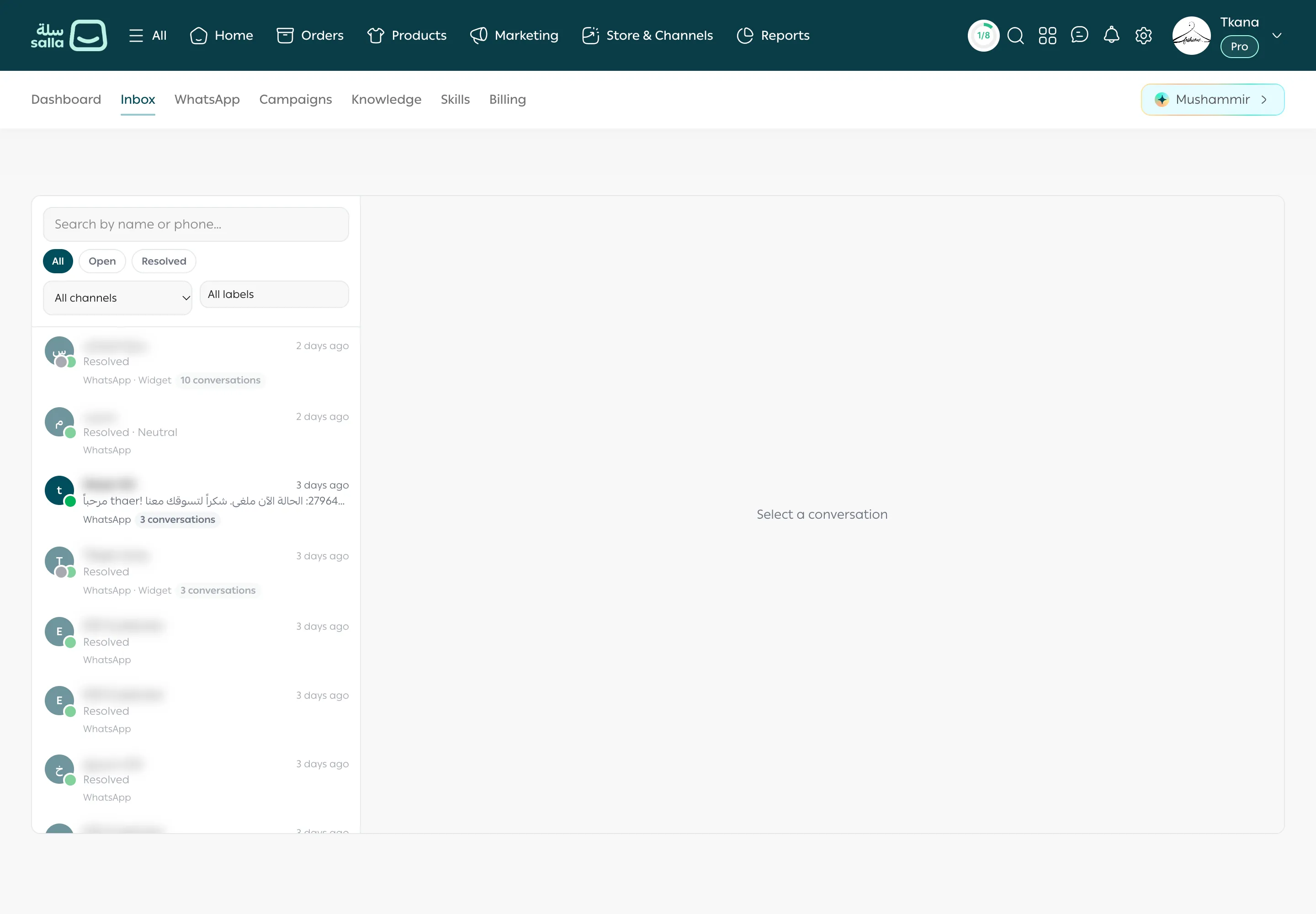
Search by name or number
Section titled “Search by name or number”-
Open the Inbox tab.
-
Type the customer’s name or mobile number in Search by name or phone….
-
Click the customer’s row to open their conversation.
Filter the list
Section titled “Filter the list”Use the filters above the list. You can combine them:
- By status: All, Open, or Resolved.
- By channel: from All channels, choose WhatsApp or Widget.
- By label: from All labels, select the labels you want. See Change a conversation’s status and organize with labels.
If nothing matches, you see No conversations match your filters. Try removing a filter.
Read a conversation row
Section titled “Read a conversation row”Each row in the list shows:
- The customer’s name and avatar, and how long ago they were last active (for example “3 days ago”).
- The status, such as Resolved.
- The channel the customer used, such as WhatsApp or Widget.
- The number of conversations if the customer contacted you more than once, for example “3 conversations”.
- A badge showing who is handling it, such as Observing when the assistant is in observe mode, Escalated when it needs your team, or an AI-paused badge with the time left before the assistant resumes.
The most recently active customers are at the top. To reach older ones, scroll to the end of the list and click Older conversations.
Was this article helpful?
Thanks for the feedback, it helps us improve these guides.